How to install Traders Window
Traders Window is free and isn't signed with a paid Apple developer certificate, so macOS asks you to confirm it once. It takes about a minute, and you only do it the first time.
-
Download the app
You get one file, TradersWindow.dmg, about 5 MB. It runs on macOS 13 Ventura or later, on Apple silicon and Intel Macs.
-
Drag it to Applications
Double-click the downloaded file. In the window that opens, drag the Traders Window icon onto the Applications folder.
 Traders WindowApplications
 -
Open it once, then click Done
Open Traders Window from Launchpad or the Applications folder. macOS will say it can't verify the app. That's expected for apps that aren't signed with a paid certificate.
Click Done. Nothing is deleted; macOS just remembers you tried to open it.
“Traders Window” Not OpenedApple could not verify “Traders Window” is free of malware that may harm your Mac or compromise your privacy.
Done -
Allow it in System Settings
Open the Apple menu → System Settings → Privacy & Security. Scroll down past Analytics & Improvements to the Security section. You'll see “Traders Window” was blocked to protect your Mac. Click Open Anyway.
Screen TimeLock ScreenPrivacy & SecurityTouch ID & PasswordUsers & GroupsSecurityAllow applications fromApp Store & Known Developers“Traders Window” was blocked to protect your Mac.Open AnywayApple could not verify “Traders Window” is free of malware that may harm your Mac or compromise your privacy.
-
Confirm with your password
macOS asks one last time. Click Open Anyway and confirm with your Mac password or Touch ID.
Open “Traders Window”?
Apple is not able to verify that it is free from malware. Only open it if you trust where it came from.
Open Anyway Done -
That's it
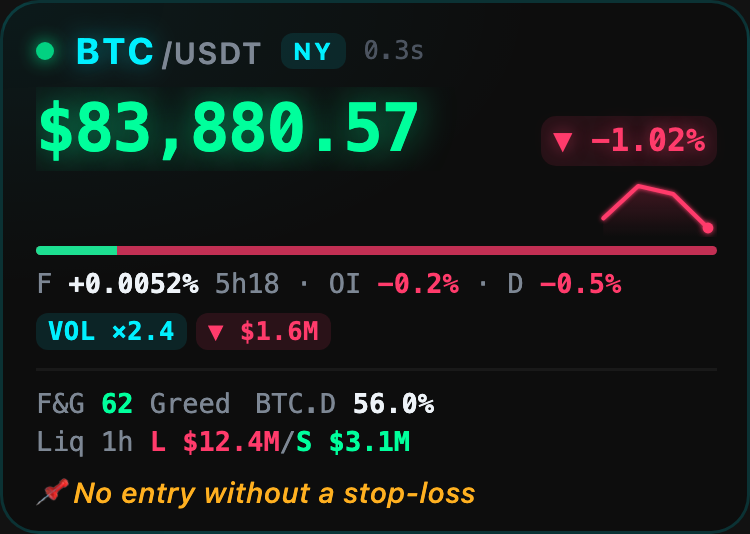
The widget appears in the top-right corner of your screen. From now on it opens normally, with no warnings. Hover it and click the gear to pick your coins.
Why does macOS warn me?
Apple charges developers $99 a year for a certificate that removes this warning. Traders Window is a free project with no income, so it doesn't have one. The warning means Apple hasn't checked the app. It doesn't mean something was found in it.
What the app does is simple to state: it reads public market data from Binance, alternative.me and CoinPaprika, stores your settings on your Mac, and, only if you connect an account, reads it with a read-only key. It can't trade, withdraw or send your data anywhere. See Privacy.
Check the download (optional)
Every release lists a SHA-256 fingerprint. To confirm your file is exactly the one published, open Terminal and run:
shasum -a 256 ~/Downloads/TradersWindow.dmgThe result should match the fingerprint on the release page.
If something doesn't work
I don't see “Open Anyway”
The button only appears after you've tried to open the app, and for about an hour afterwards. Open Traders Window again, click Done, then go back to Privacy & Security.
macOS says the app “is damaged”
This can happen if the download was modified along the way, for example by some download managers. Download it again from this site. If you still see it, open Terminal and run:
xattr -dr com.apple.quarantine "/Applications/Traders Window.app"This removes the “downloaded from the internet” flag, so macOS stops blocking the app. Then open it normally.
On macOS 13 or 14
You can also right-click the app in Applications, choose Open, then click Open again in the dialog.
It opened, but I can't see it
Look in the top-right corner of the screen. If it's hidden, press ⌃⌥H (Control + Option + H) to show it.